

TK - Special Shipping - shipping price rules
Adjust existing OpenCart shipping prices with rules based on products, weight, order total, customer group, courier and payment method.
Choose when and how shipping prices change.
TK - Special Shipping </> TKdemo
Password:
demo
What you get
- Shipping adjustments by percentage or fixed amount.
- Conditions by product, weight, total and customer group.
- Rules for the courier and payment method.
- Priorities and combinations of applicable rules.
Suitable for
Stores with different delivery terms by customer, product or order size.
Before you buy
The module adjusts prices of shipping methods already configured in the store. Check priorities and combinations when several rules may apply at once.
Final price including VAT
Free installation and configuration included
Domain, subdomains and multistore
One licence covers the domain and all its subdomains. For a multi-store setup, purchase the extension only for the main domain; all other stores receive it free of charge.
Leave a recommendation
What this extension does
Adjust shipping prices with rules for products, customers, order value, courier and payment method.
About the module
TK - Special Shipping is an OpenCart extension for creating flexible shipping rules - including discounts, fixed prices and surcharges.
The module adjusts shipping prices automatically according to conditions such as shipping method, payment method, weight, order total, products, categories, manufacturers, customer group and country.
How the module works
- When the cart or checkout loads, the module checks all active rules.
- Each rule has its own priority, based on Sort Order, and a set of conditions.
- When a rule matches, it changes the price of the relevant shipping method.
- If several active rules have multy = Yes, they are combined and applied in sequence.
- If there are no
multy=1, but at least one rule hasmulty=0, the module uses only the first active rule withmulty=0. - The adjusted amount appears in the checkout totals and in the order.
Admin panel settings
General
- Status - enables or disables the module.
- Sort Order - sets the calculation order relative to other order total extensions.
Creating a new condition
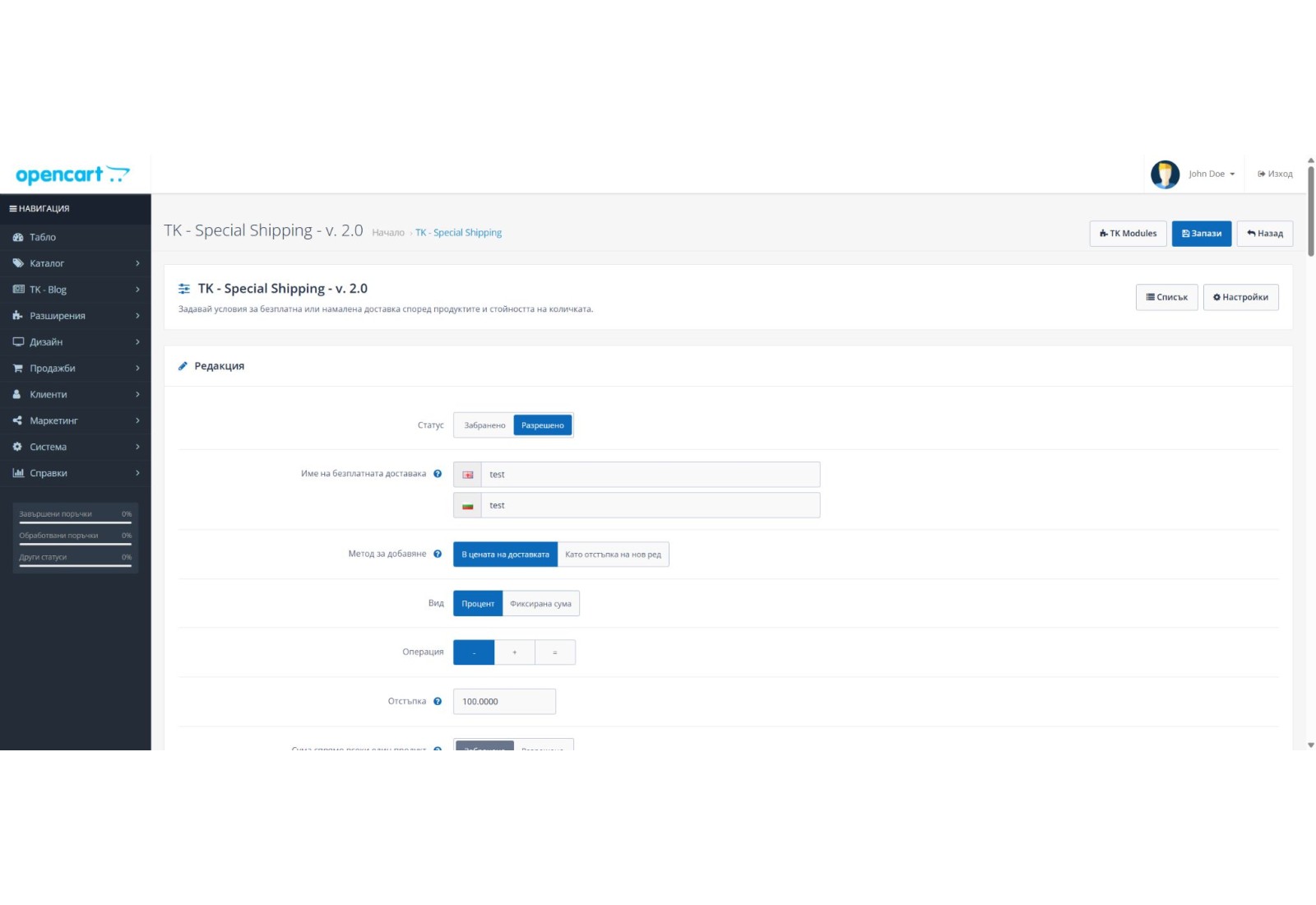
Click Add new condition to create a row with its own settings.
1. Free shipping label
The text shown at checkout when the discount applies.
2. Type: percentage or fixed amount
Choose whether the value is calculated as a percentage or a fixed amount.
3. Operation
- Subtract (-) - reduces the shipping price.
- Add (+) - adds an amount to the shipping price.
- Equals (=) - sets shipping to a specific price.
4. Discount
The amount or percentage applied according to the settings above.
5. Combine with other TK - Special discounts (multy)
- Yes (1) - the rule can combine with other active rules.
- No (0) - applies on its own if there are no active combinable rules.
6. Apply when a coupon is used
If disabled, the rule will not apply when a coupon is active.
7. Apply to products on sale
Allow or prevent application to discounted products.
8. Where to apply the discount
- To the whole cart.
- To specific products, if selected below.
Additional filters and conditions
- Shipping method - choose a courier such as Econt, Speedy or BOX NOW.
- Payment method - select applicable payment methods, such as card or cash on delivery.
- Customer group - restrict the rule to a customer group.
- Country / Geo zone - select the countries or zones where the promotion applies.
- Weight from / to - the weight range in kilograms for the rule.
- Amount from / to - the minimum and maximum cart total.
- Categories / Manufacturers / Products / Options - specify which items are eligible.
- Excluded categories / manufacturers / products / options - the rule will not apply if any of these items are in the cart.
- Stop for products outside the selection - if the cart contains products outside the list, you can stop the discount or exclude their value from the calculation.
How multy works
- If there is at least one rule with multy = Yes, the module applies all such rules in combination.
- If there are no
multy=1, but there aremulty=0, the module applies only the first active rule with multy=0. - If there are rules with both
multy=1andmulty=0, it applies only combinable rules (multy=1) and ignores the others.
Examples
Example 1 - Free shipping over BGN 100
- Type: Fixed amount
- Operation: Subtract (-)
- Discount: equal to the shipping price
- Amount from: 100
- Multy: No
Example 2 - 50% off Econt shipping when paying by card
- Type: Percentage
- Operation: Subtract (-)
- Discount: 50
- Shipping method: Econt
- Payment method: Credit card
- Multy: Yes
Example 3 - A BGN 2 surcharge for cash on delivery
- Type: Fixed amount
- Operation: Add (+)
- Discount: 2.00
- Payment method: Cash on Delivery
- Multy: Yes
Important
- The module runs automatically whenever the cart or checkout changes.
- The Sort Order must place it after the other order total extensions so calculations are correct.
- For a free shipping rule, the Free shipping label appears as a separate line in the order totals.
- All active discounts are stored in the session and displayed in the order and customer email.
Overview
The module TK - Special Shipping applies your rules to shipping prices.
You can:
- create conditional discounts and surcharges;
- combine several active promotions (
multy=1); - or use one prioritised rule (
multy=0).
For example:
Free shipping over BGN 100, 50% off Econt shipping when paying by card, or a BGN 2 surcharge for cash on delivery. Rules apply automatically during checkout.
Free shipping rules
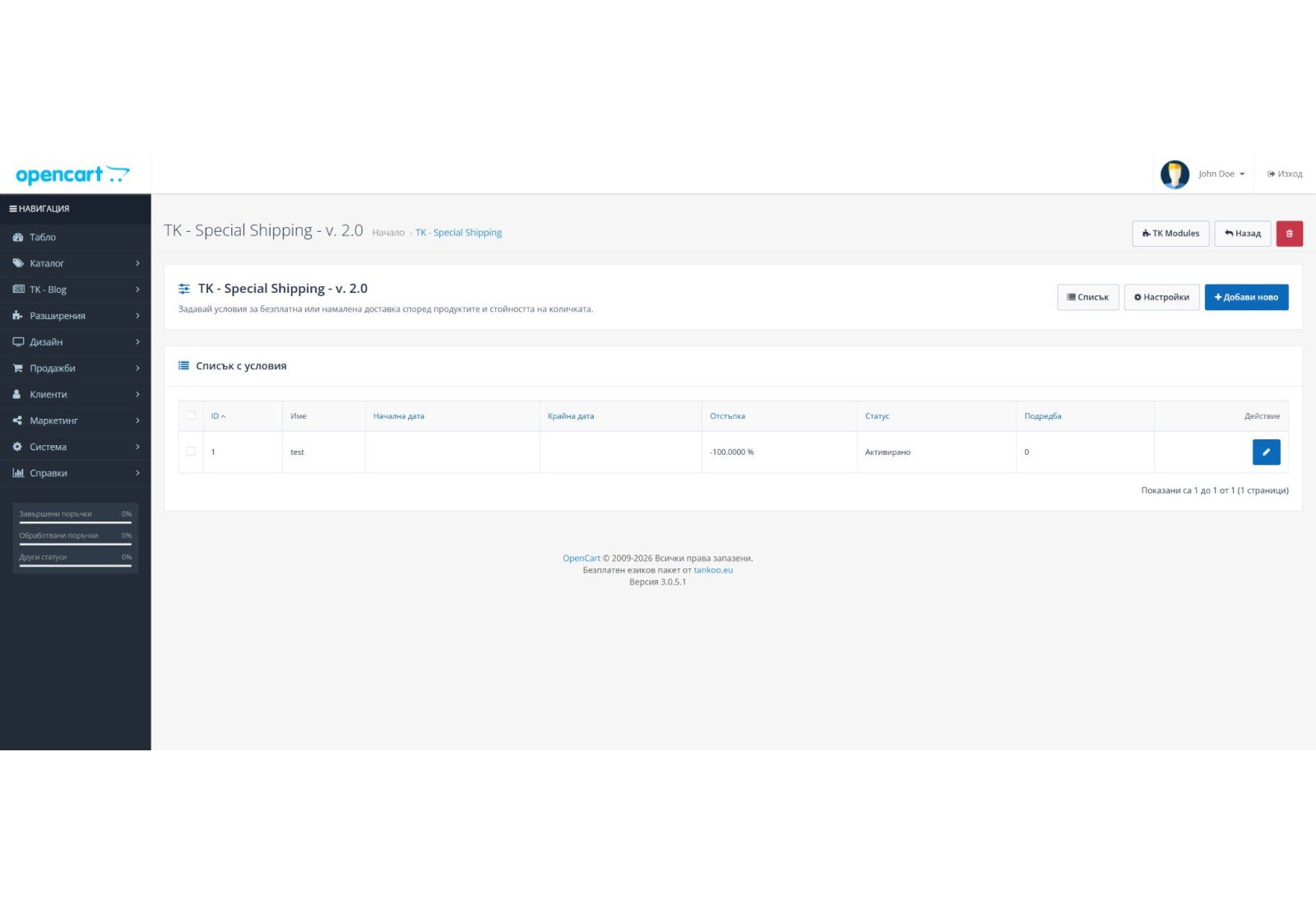
Edit or delete any free shipping rule from the list.


Installation with TK - Modules
TK - Modules is the free installer for installing and updating my OpenCart extensions. It gives you access to the modules activated for your domain.
- Download and install TK - Modules for your OpenCart version.
- Enter your API token and click Check for modules.
- Select the module you purchased from the list and start the installation.
View TK - Modules and installation instructions
Paid modules include free installation and configuration.
Access permissions
In System > Users > User Groups, grant the relevant group access and modify permissions for the module's pages.
Activating TK - Special Shipping
Open the module from the extension list and enter the activation token provided to you. The API checks it against your store's domain.
Displaying the order total
Also enable TK - Special Shipping under Order Totals so the calculated value is included in the cart total. Configure the rules and check the result with a test order.
Change history
Version 2.1
- Refreshed the admin panel for easier management of delivery rules.
