

TK - Modules - installer for OpenCart
Free OpenCart installer for tanko.dev extensions. Install and update TK modules directly from your store's admin panel.
Leave a recommendation
What this extension does
Install and update your tanko.dev extensions from your OpenCart admin with TK - Modules.
Choose your version and download the file using the Download button at the top of the page.
What data do TK modules use?
When you activate a module, check its licence or request an update, the module connects to the tanko.dev API. Depending on the request, it sends the store domain, installation token, module code and version, OpenCart version and type of operation. The API logs the request, its date and time, and the IP address it came from. Requests for courier module settings also identify the courier.
Licence checks do not retrieve your customer database or orders from your store. Activation and updates do not send customer names, phone numbers, email addresses, delivery addresses, order contents or payment details.
When you create a shipping label, the recipient and delivery details go to the selected courier. These details are not sent to the tanko.dev API.
If you enable the Meta integration, your store sends Meta the events you select in the integration settings.
1. Installing the TK - Modules installer
- Log in to your OpenCart admin panel.
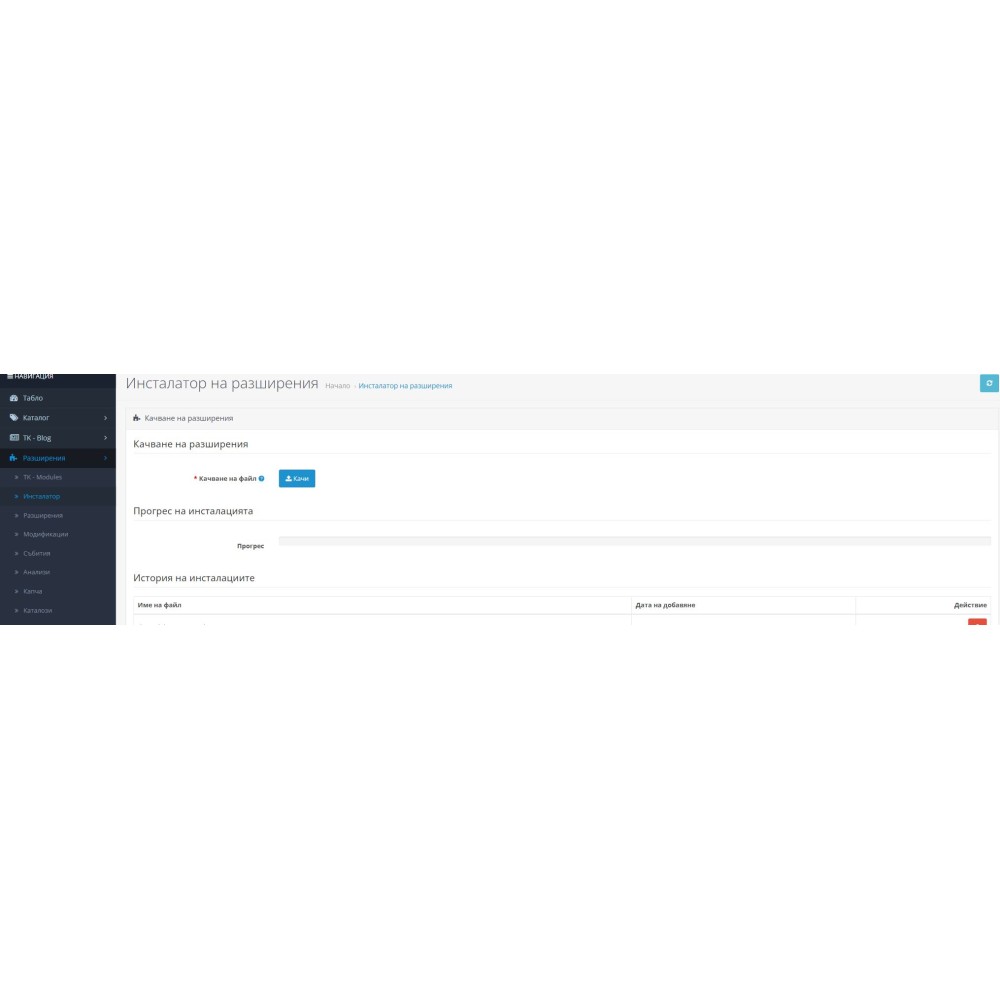
- Go to Extensions > Installer.
- Upload the
tk_modules.x.x.ocmod.ziparchive you downloaded for your OpenCart version. - Wait for confirmation: "Success: You have modified extensions!"
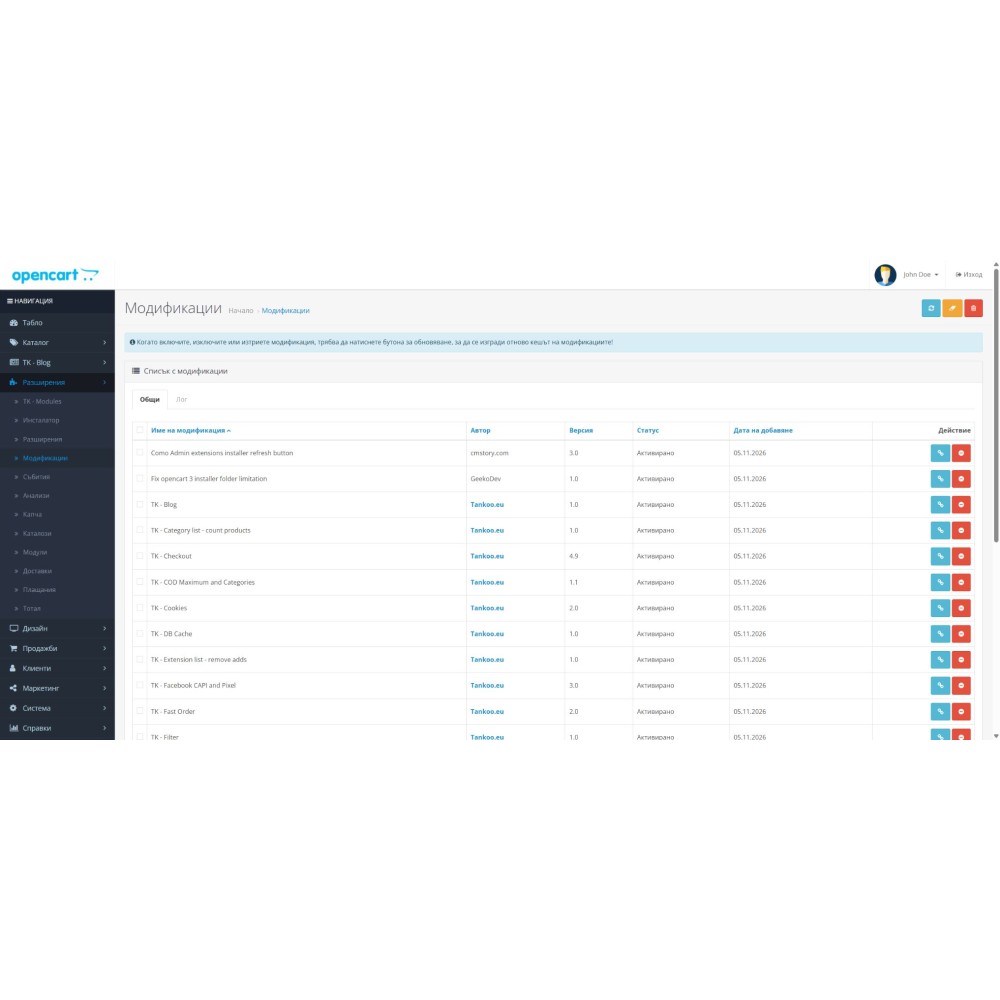
- Then go to Extensions > Modifications and click Refresh.


2. Granting access permissions
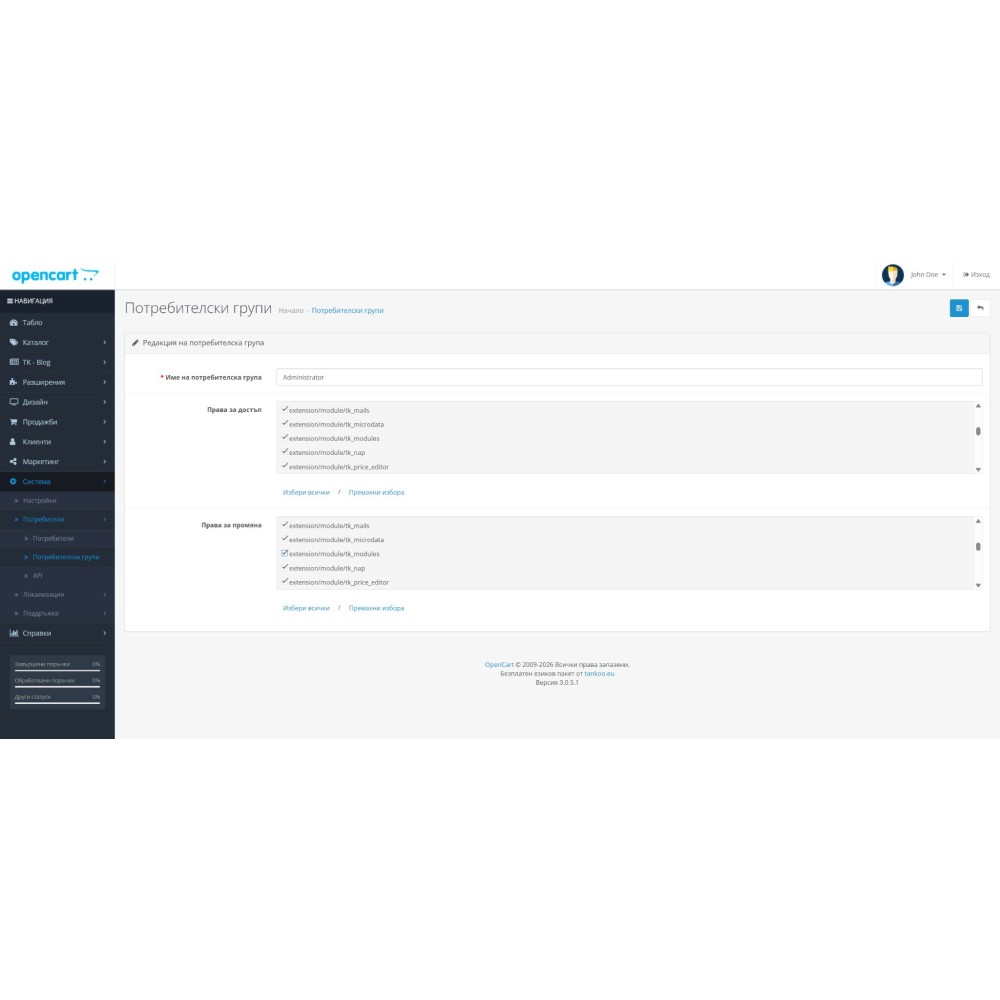
- Go to System > Users > User Groups.
- Open the group assigned to your admin account, often Administrator.
- In the Access Permission and Modify Permission sections, tick the entries for
tk_modulesfor your OpenCart version

3. Opening TK - Modules
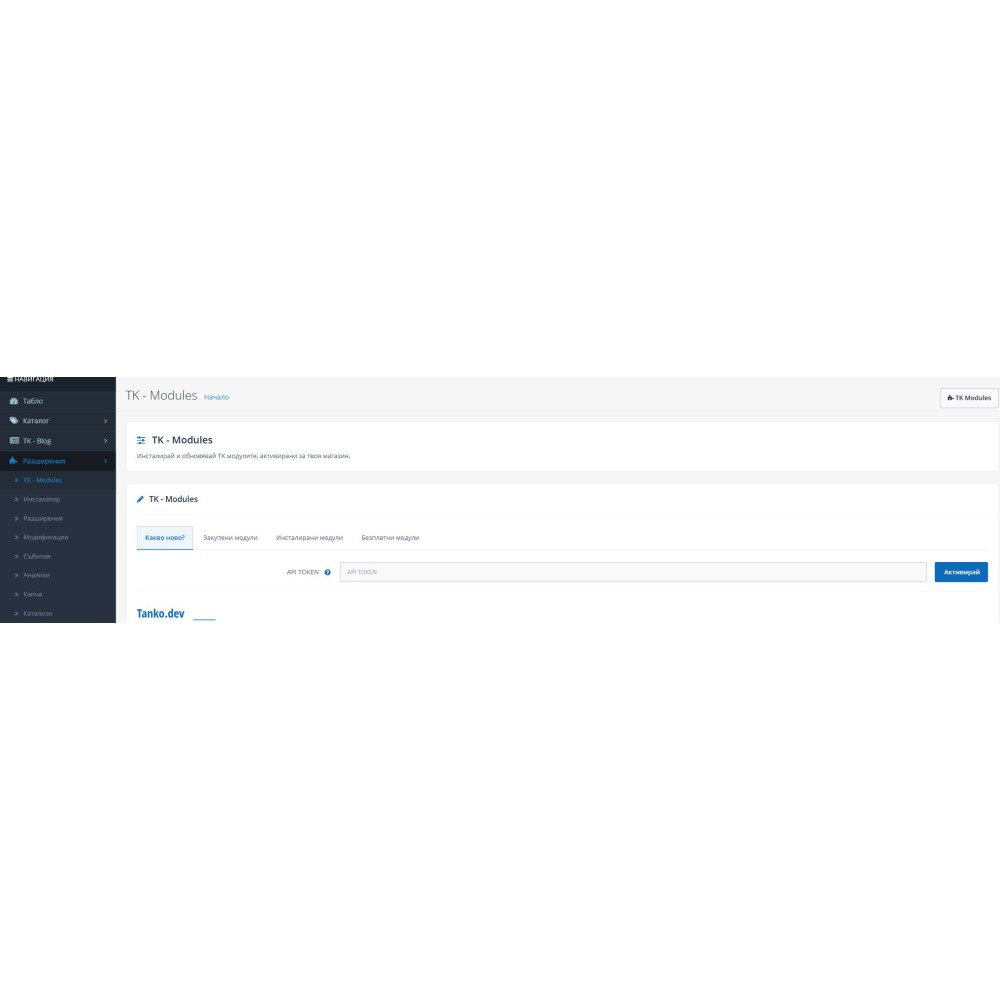
- Go to Extensions > TK - Modules.
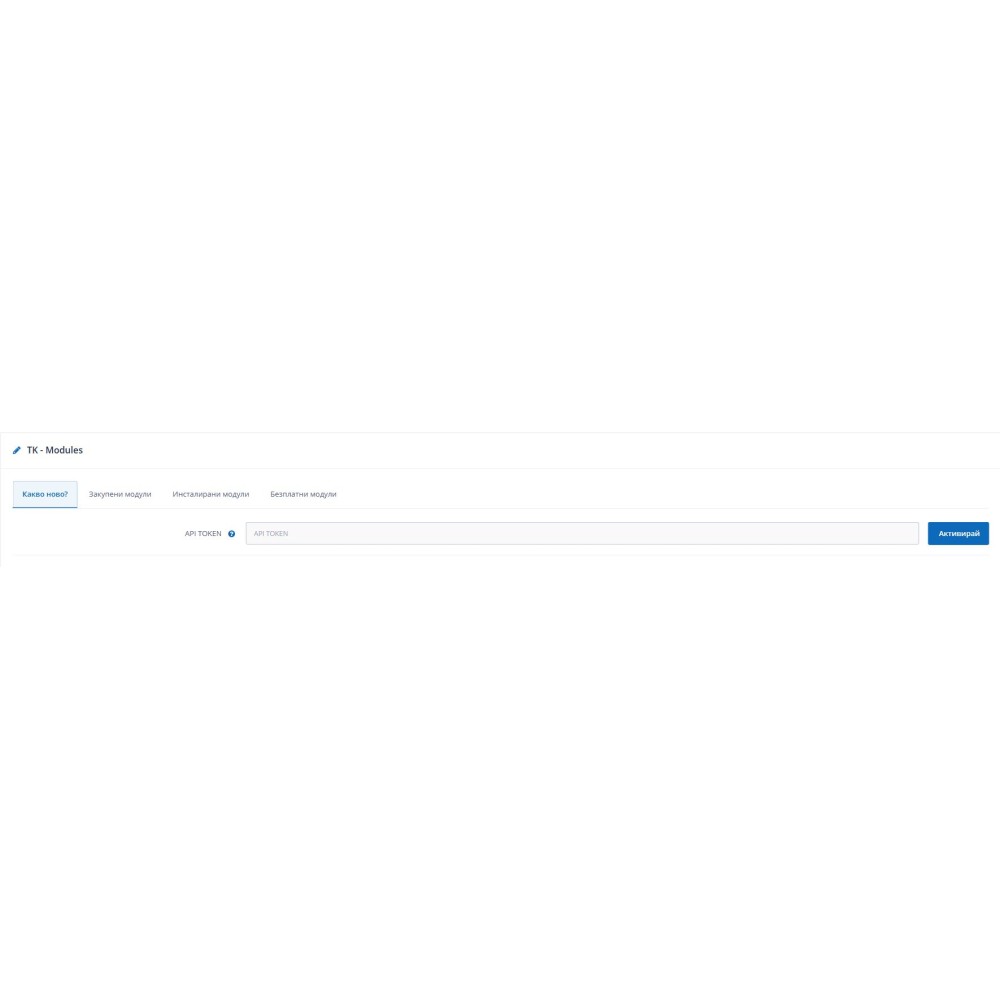
- The module opens with these tabs:
- What's new? - new or important announcements
- Purchased Modules - modules you have purchased
- Installed Modules - modules already installed
- Free Modules - free modules

4. Finding your token and loading available modules
- Sign in to your customer account at tanko.dev and open Modules.
- Find your store domain and click View. Find the required module in the details and use the copy button to copy the entire installation token.
- Return to your own store admin: Extensions → TK - Modules → What's new?
- Paste the token into API TOKEN and click Activate. Enter the token here, not your store address or login password.
- Wait for the modules available for that domain and token to load. Find the one you want to install.
Use the token for the store where you are installing the module. If the domain or licence is not yet listed in your account, check that the order has been processed and you are signed in to the correct customer account.

5. Installation and initial setup
- In the Shipping Methods or Modules section, you will see all available modules.
- Each module has a green arrow button for installation.
- When you click it:
- The module is downloaded automatically from the API.
- It is installed through the OpenCart installer.
- It is added to Modifications.
- The cache is refreshed.
After the installation success message, open the module settings. In Installed Modules, find its row and click the blue pencil button. If a green installation plus is still shown instead, complete that step first. Then enter the required settings, enable the module if it has a Status field, and save.
Courier integrations also need the connection details for the relevant courier. Installing the files does not configure your courier contract, delivery prices or delivery methods.
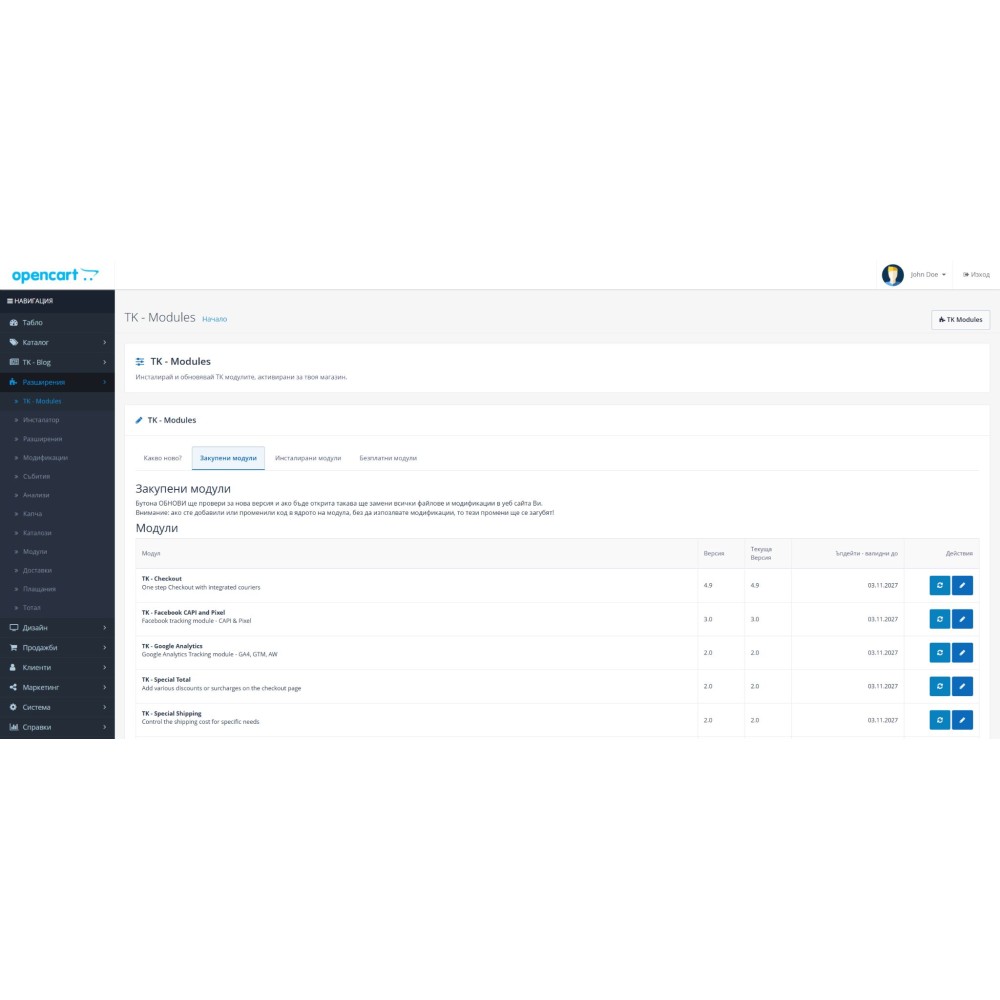
6. The Purchased Modules tab
Here you can see:
- Your purchased modules
- The latest module version
- Your installed version
- The expiry date of your update period
- An update button

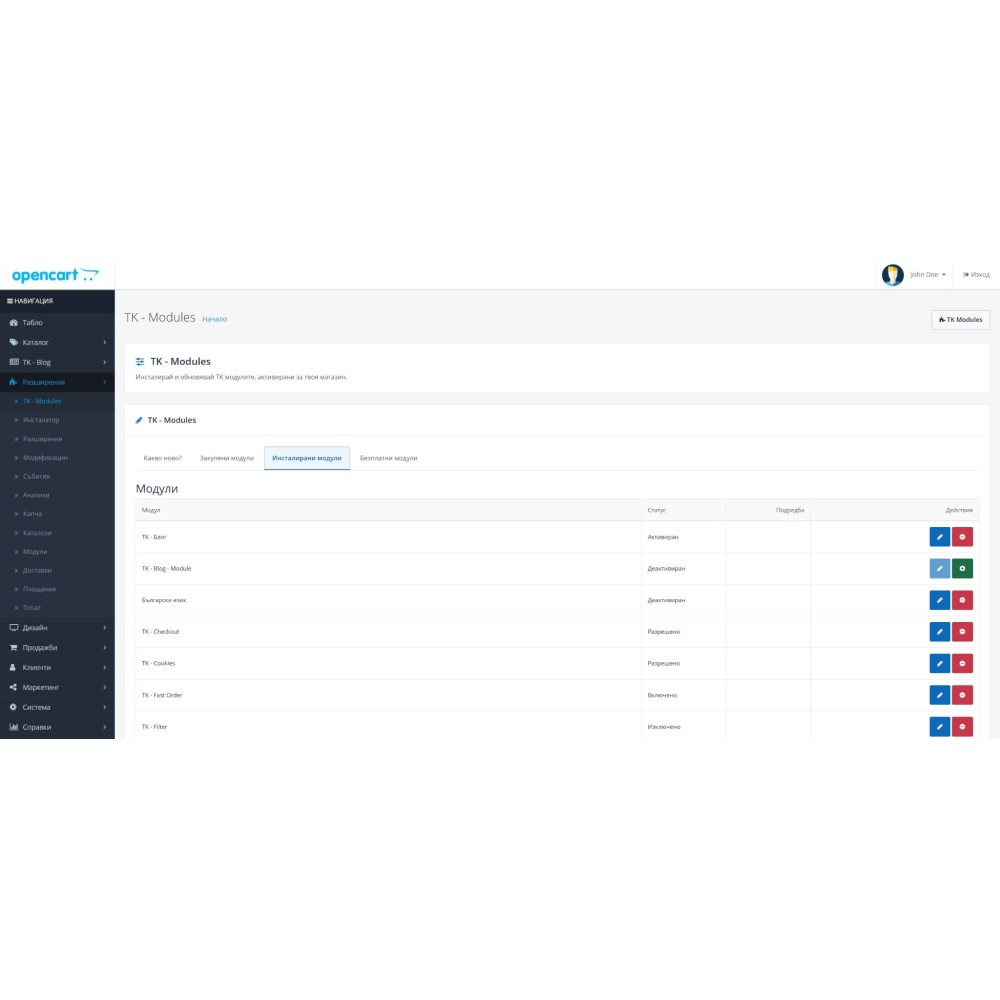
7. The Installed Modules tab
- Shows which modules are already installed.

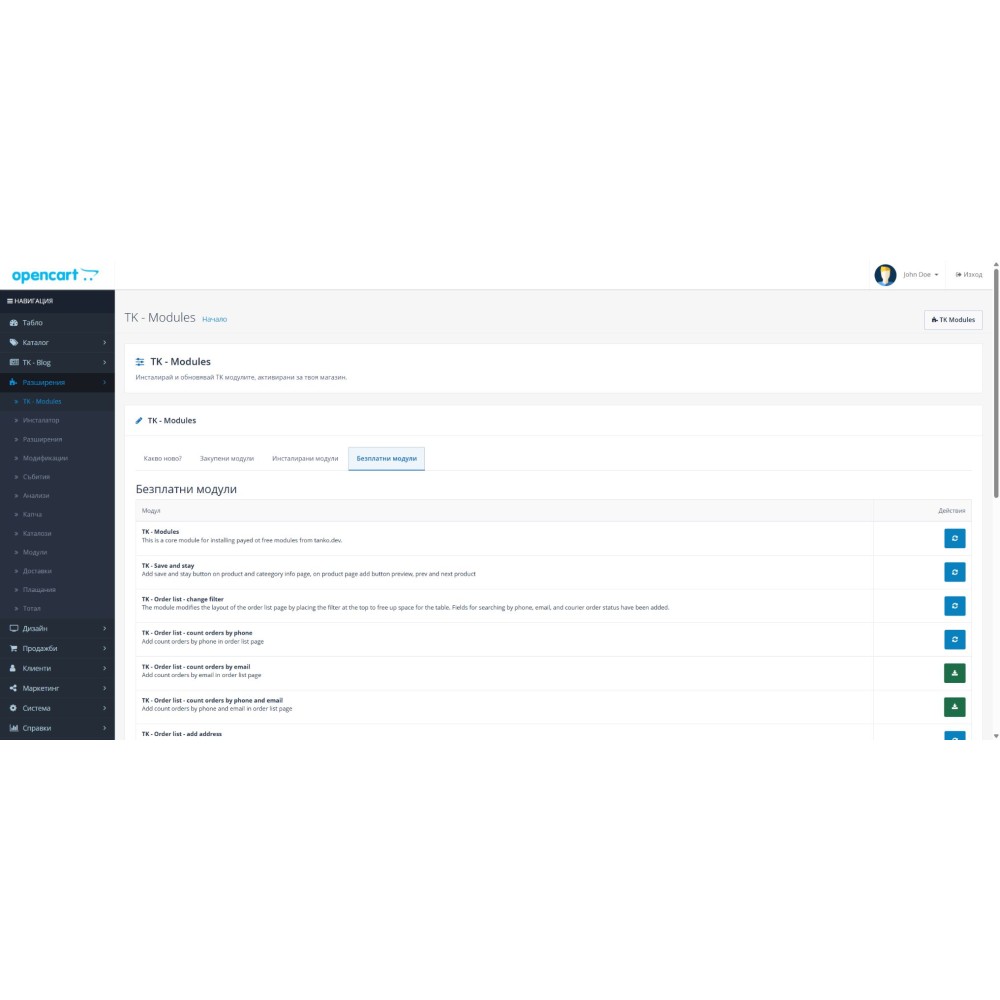
8. The Free Modules tab
- Shows all free modules available to install, if any.
- Installation works the same way: with one click.

9. Other things to know
- All modules come from a central API system, so you do not need to upload files manually.
- If your purchased TK - Checkout package includes courier integrations, use TK - Modules to install the included couriers, such as Econt, Speedy, Transpress, BOX NOW and NextLevel.
- The update button is available during your included or renewed update period. You can continue using the purchased version indefinitely.
IMPORTANT:
- If module files have been edited directly without OCMOD, an update will overwrite those changes.
- If you do not have permission for
tk_modules, the panel will not be visible. Make sure the permissions are enabled in User Groups.
If a module or update button is missing
- No results after Activate: check that you copied the entire token and that it belongs to this store domain.
- No TK - Modules menu: check that modifications have been refreshed and your user group has access and modify permissions.
- The update period has expired: renew it to access newer versions. You can continue using the purchased version indefinitely.
- A free module: open Free Modules. Installing it does not require a paid licence token.
