
Missing a new office, seeing an old address or unable to find a location? Start by checking whether the courier data in your store is up to date. Couriers open new offices and lockers, change addresses and close locations. Your store may still be using an older list.
How to open the courier settings
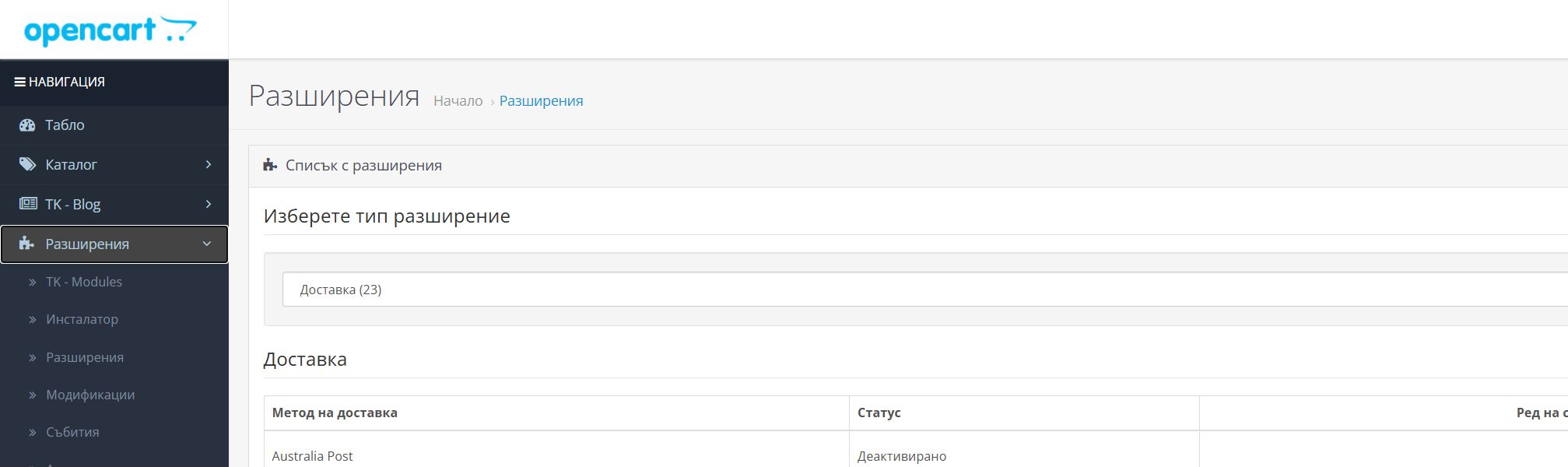
In OpenCart 3: Extensions → Extensions → select Shipping → click the pencil next to your courier.
- Sign in to your own store admin. Use the address and login details you normally use to manage products and orders.
- Click Extensions in the left menu. It expands to show several items. Select the submenu also called Extensions.
- Find Choose the extension type above the list. Select Shipping from the dropdown. If it currently says Modules, change it to Shipping. The number in brackets is the number of extensions and may differ in your store. Wait for the shipping methods to load.
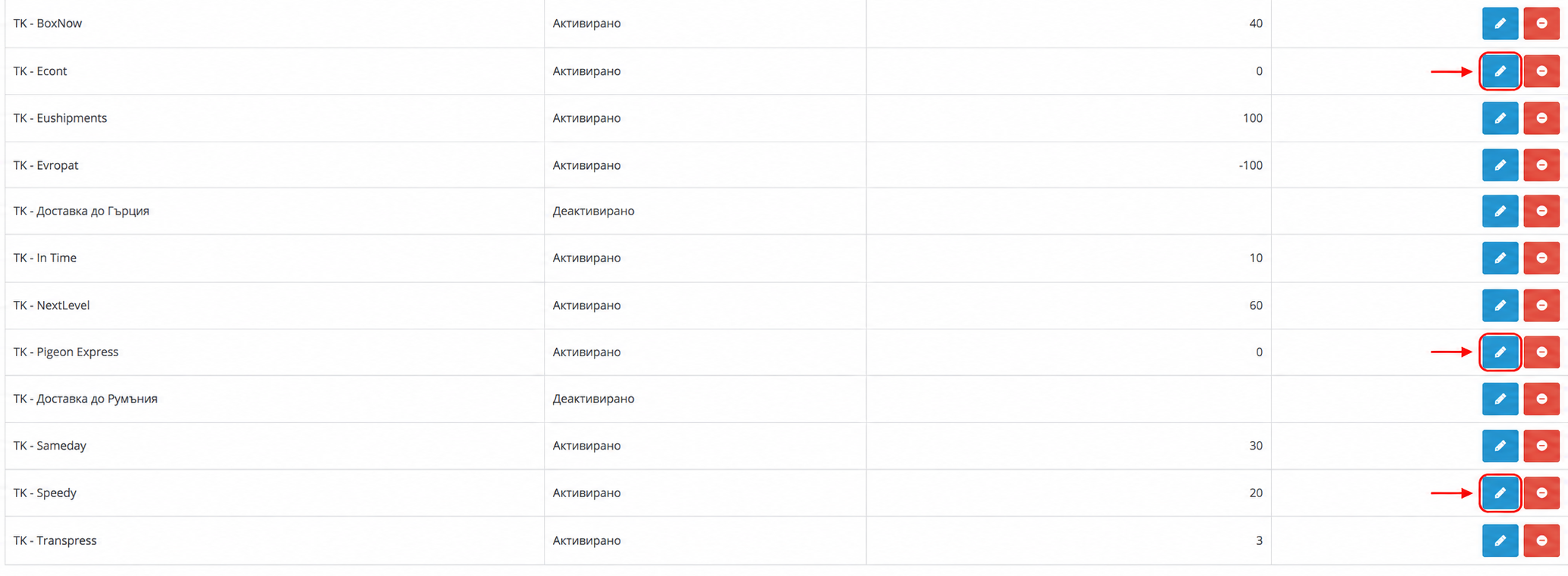
- Scroll down and find your courier. Look for TK - Econt, TK - Speedy or TK - Pigeon Express.
- In the Action column on the right of that row, click the blue pencil button. This is the Edit button and it opens the courier settings. The red minus button uninstalls the extension; do not use it to update offices.
Where to find the Edit pencil
Find your courier's row and click the blue pencil button on the right. The screenshot highlights the Edit buttons for Econt, Pigeon and Speedy. The red minus button next to each pencil is not the Edit button.
If Shipping is listed directly under Extensions, you can open it there. This is a shortcut to the same settings. Some older OpenCart versions use this menu layout.
If the courier is missing or you see a permission error, ask your store administrator to check that the extension is installed and your account has access to it.
How to sync the data
- Find the data sync button. In Econt and Speedy, it is near the top of the settings page. Where separate country buttons are available, choose the country you need.
- Click once and wait. Keep the page open and do not start another sync while the first one is running.
- Check the result. Wait for a message confirming that synchronization was successful. An error message does not confirm a successful update.
- Check delivery in the storefront. Reload checkout, select the country and location again, then look for the office or locker.
Which button should I use?
Choose your courier: Econt · Speedy · Pigeon Express.
Econt (TK - Econt)
Open the TK - Econt settings. The country sync rows are at the top, above the login details. To update Bulgarian offices, lockers and locations, click the blue Sync data button in the Bulgaria row. In the Bulgarian admin, the button reads „Синхронизирай данни“.
For Romania or Greece, use the button in that country's row. Wait for the success message before checking delivery again.

Speedy (TK - Speedy)
Open the TK - Speedy settings. The sync buttons are at the top, before the username field. To update Bulgarian offices, lockers and locations, click the blue Sync data button in the Bulgaria row. In the Bulgarian admin, look for „Синхронизирай данни за България“.
For an outdated address or missing office in Romania or Greece, use the green button for that country. Syncing Bulgaria does not update the other countries. After the success message, reload checkout and select the location again.

Pigeon Express (TK - Pigeon Express)
Open the TK - Pigeon Express settings. There are two green buttons next to each other at the top:
- Sync locations on the left, labelled „Синхронизирай населени места“ in Bulgarian. Use it when a town or village is missing.
- Sync offices on the right, labelled „Синхронизирай офиси“ in Bulgarian. Use it for a missing office or an outdated office address.
If both the location and office are missing, sync locations first. Wait for it to finish, then sync offices.

The screenshots show the Bulgarian OpenCart 3 admin at oc.tkdev.eu. The layout may differ in other versions.
Other couriers
The available buttons depend on the courier and extension version. If there is a sync action for locations, offices or lockers, use the one for the list you need. If there is no such button, the extension may load its data differently. Check the Guide tab on that extension's page.
The sync worked, but the office is still missing
- Check that you selected the correct country and location.
- If offices and lockers are separate delivery choices, check the correct type.
- Make sure the sync finished with a success message.
- Check the courier's current list. A newly opened location may not yet be available through its integrations.
If you see an error, keep its exact wording. If the sync succeeds but the location is still missing, include the courier, town or city, office name or number, and extension version in your Helpdesk request. Do not include passwords or API tokens.
Do I also need to update the extension?
Updating an extension and syncing its data are separate actions. An extension update replaces its files with a newer version; a data sync refreshes the lists used by the courier integration. For outdated offices, start with a sync. An old address alone is not a reason to reinstall the extension.
