
The courier is enabled in the admin panel, but customers cannot select it at checkout. An Enabled status alone is not enough: the method also has to match the delivery address, the products and the services allowed in its settings.
Use the checks below to narrow down the cause without changing everything at once. Screenshots show the oc.tkdev.eu demonstration store running OpenCart 3. Some field names differ between module versions.
Start by identifying what is missing
- No shipping methods at all: start with the products in the cart, the address and the checkout being used.
- Other couriers appear, but one is missing: check that courier's status, geo zone and allowed services.
- The courier appears but has no price or a particular office is missing: check the courier connection or synchronise the location data.
1. Open the correct courier settings
- Sign in to your store admin.
- Open Extensions → Extensions in the left menu.
- Choose Shipping from the extension type dropdown.
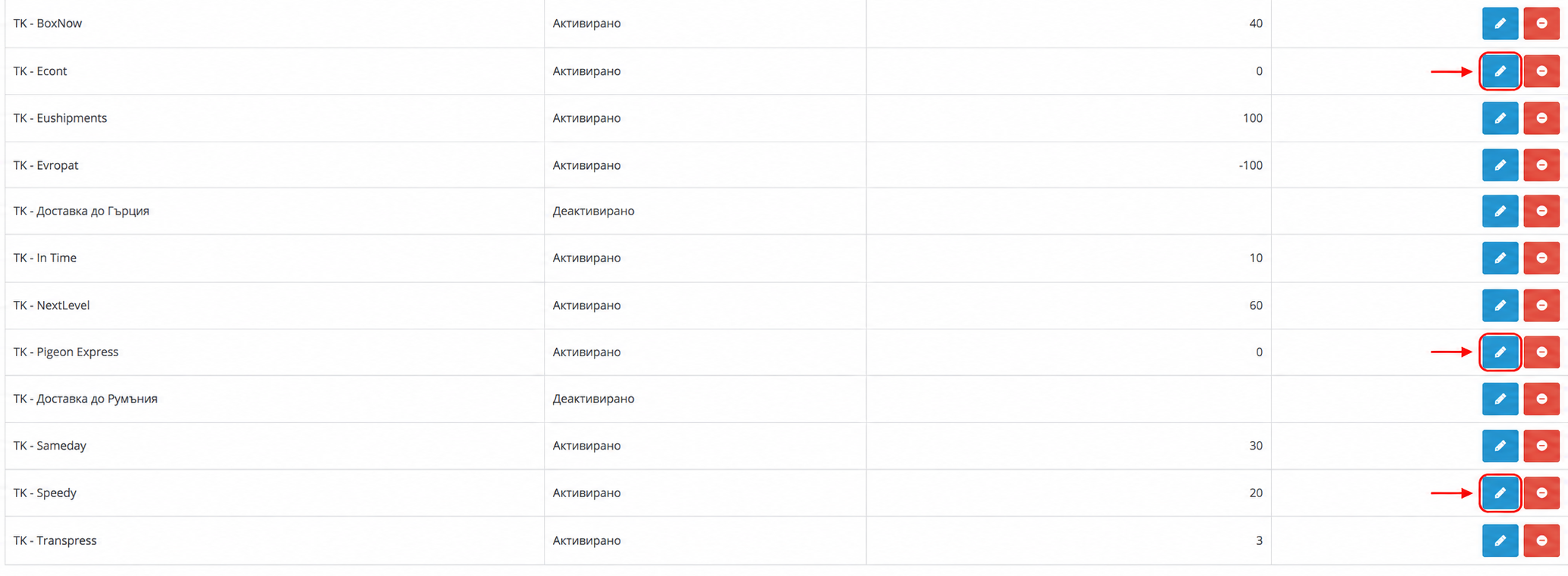
- Find the module, for example TK - Econt, TK - Speedy or TK - Pigeon Express.
- Click the blue pencil button on the right. Check that its status is Enabled.
If a green plus is shown and editing is unavailable, the extension has not yet been installed in OpenCart. If it is missing from the list entirely, check its installation through TK - Modules. The red minus button uninstalls the extension.
For TK courier integrations, also check TK - Checkout. They are designed to work with it. If the store opens the standard checkout or another checkout extension, check the TK - Checkout configuration first. Courier credentials and the TK - Checkout token are separate settings.
2. Do the products require shipping?
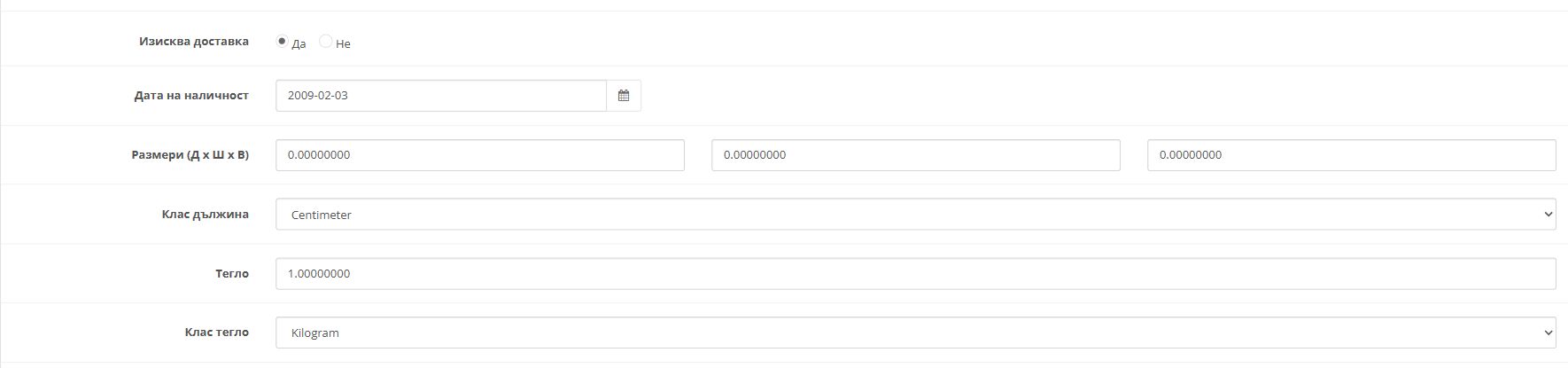
Open Catalog → Products → Edit product → Data. A physical product should have Requires Shipping set to Yes.
If every item in the cart is set to No, OpenCart does not require a shipping method. This is expected for an entirely digital order. Do not enable shipping on digital products just to make a courier appear.
3. Example: an enabled courier with the wrong geo zone
Suppose the customer selects Sofia, Bulgaria, while the courier is assigned to a geo zone containing only the United Kingdom. The courier is enabled, but the customer's delivery address does not belong to that zone. The method is therefore not offered.
This is a diagnostic example, not a report of a real customer order.
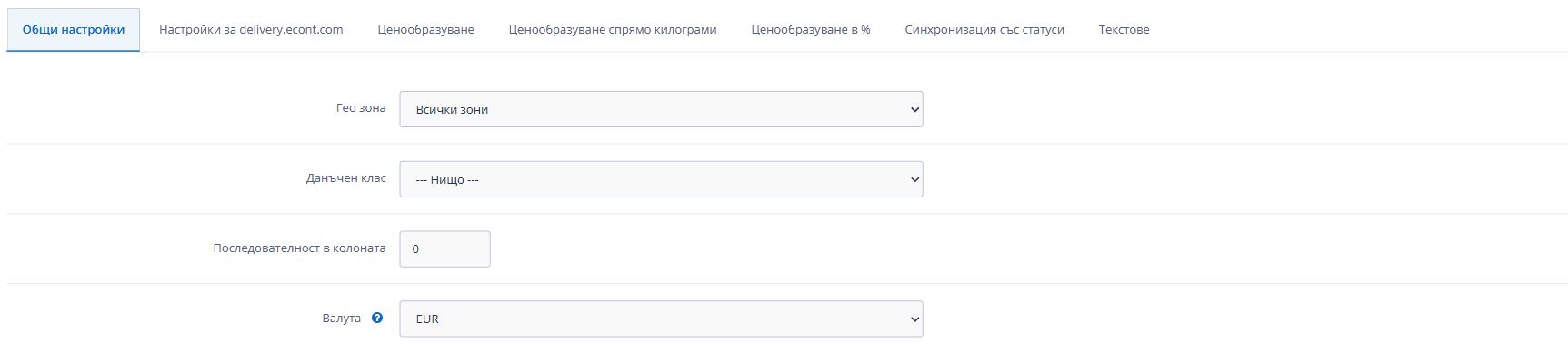
- Open the courier's General Settings → Geo Zone.
- Under System → Localisation → Geo Zones, check the countries and regions included in that zone.
- Compare them with the shipping address at checkout. A signed-in customer may have an old saved address selected.
- If the zone is wrong, select or correct it to match the areas you actually serve, then save.
- Repeat the check with the same products, quantities and address. If the method now appears, you have found the cause. If it does not, continue with the next check.
4. Are address, office and locker delivery enabled?
The courier's overall status and its individual delivery methods are separate settings. A courier can be enabled while office and locker delivery are disabled.
Econt
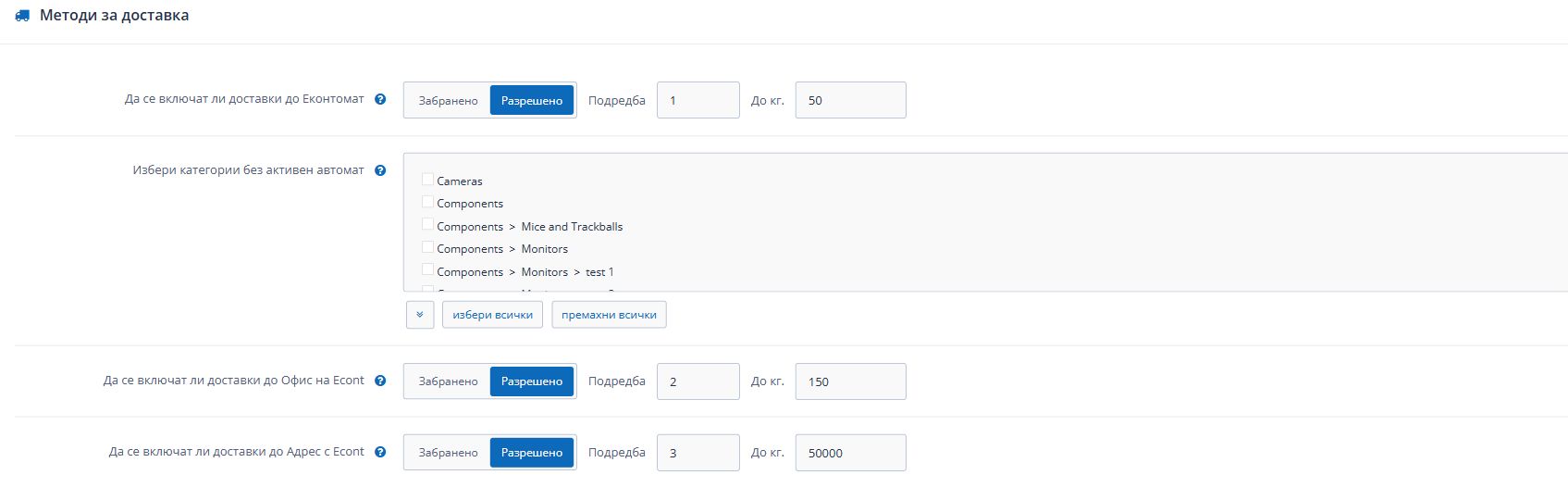
Open Settings for delivery.econt.com and find Shipping Methods. Check Econt locker, office and address delivery separately.
- Is the delivery method you expect to see enabled?
- Does the total cart weight exceed its Up to kg limit?
- Does any product belong to a selected category excluded from locker delivery?
Speedy
In Speedy Settings, check Allowed Methods. Select a service suitable for the shipment and available under your courier contract. Further down, there are separate locker, office and address delivery settings, weight limits and categories excluded from locker delivery.
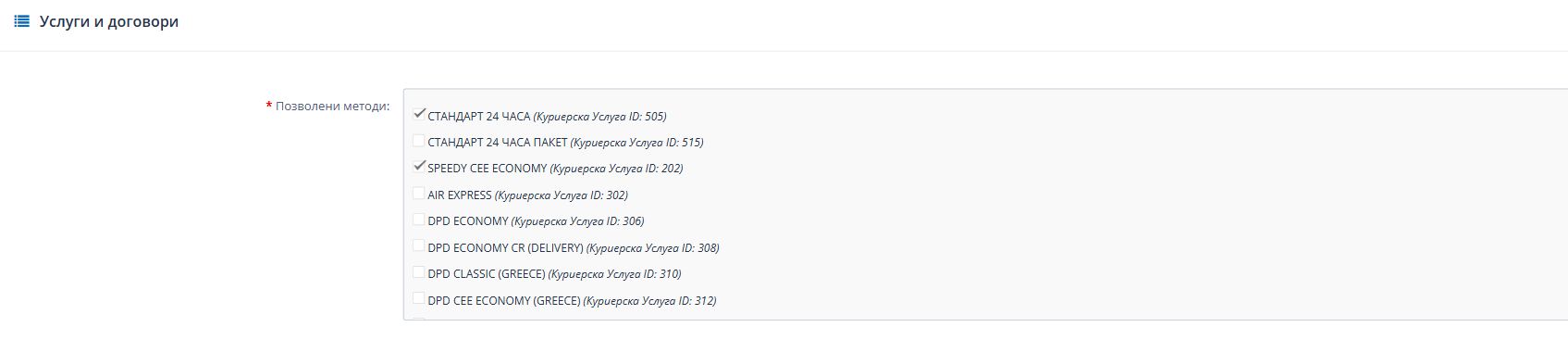
For Pigeon and other integrations, check their available service settings and restrictions in the same way. The fields are not identical across couriers.
Check the units: a weight of 1000 with Gram as the weight class is 1 kg. A weight of 1000 with Kilogram is a very different shipment. Do not simply raise a service limit when the product data is wrong.
5. The courier appears but does not calculate a price
This is different from a missing shipping method. Complete the location and address, office or locker selection before comparing prices.
- Check the courier login details or API connection. Keep the exact wording of any error.
- Check the selected sender profile and dispatch address or office where the module uses them.
- Make sure the selected service supports the destination and shipment type.
- With automatic calculation, the courier must return a price. An arbitrary fixed price does not fix authentication, service or shipment-data errors.
Do not change the tax class or payment settings at random. Note each change and test one setting at a time so that you can restore the previous behaviour.
6. Is only a particular office or locker missing?
If the courier appears but an office is missing or its address is outdated, start by synchronising the location data. See the guide to updating courier offices, lockers and locations for Econt, Speedy and Pigeon.
Synchronisation updates those lists. It does not enable a disabled service or change the module's geo zone.
How to check the result
- Save only the necessary change in the admin panel.
- Open the store in a new private browsing window for a fresh guest check.
- Add the same product and quantity and choose the same country, region and location.
- Check that the courier appears, that an address, office or locker can be selected, and that a price is calculated.
- If the problem affects only a particular customer account, repeat the check with that account and compare its address and conditions. You do not need to submit an order just to run this check.
If the problem started after an update, check the TK - Checkout and courier module versions in TK - Modules. After installation, also check that modifications were refreshed. Do not uninstall a working module merely as an attempt to restart it.
If you still cannot find the cause
Send a short description through Helpdesk with enough detail to reproduce the issue:
- the store URL and versions of OpenCart, TK - Checkout and the courier module;
- the product, quantity and whether you are testing as a guest or signed-in customer;
- the country, region, location and intended delivery method;
- whether the whole courier, one service, the price or a specific office is missing;
- a screenshot, the exact error message and the approximate time of the check.
Hide passwords, tokens and customer personal data in screenshots. Login credentials are not needed for the initial check.
