
The customer sees one shipping price at checkout, but a different amount appears when you prepare the shipping label. The two calculations may be using different shipment details or services. With Econt, check both TK - Econt in OpenCart and the store settings in delivery.econt.com.
Start with one specific order. Compare the sender, route, weight, services, payment and currency. If the customer is meant to pay the actual courier charge, the conditions used for the quote and the label need to match.
1. Which two amounts are you comparing?
- Checkout shipping price: what the store charges the customer. It may be an API quote, a fixed amount, a discounted price or zero.
- Courier service charge: transport and applicable services on the label, allocated between sender and recipient.
- Cash on delivery: the amount collected for the order. It is not the shipping charge itself.
Free shipping for the customer does not normally make the courier service free; the merchant covers it. A fixed customer price can also leave a difference payable by the store. Econt supports sharing the shipping cost between the parties. Econt's explanation of shipment payment.
Compare the customer's final amount, not just the shipping line. Transport may be charged to the recipient separately or already included in the amount collected for the order.
2. Where are the OpenCart settings?
- Open Extensions → Extensions in the administration.
- Select Shipping from the extension type list.
- Find TK - Econt and click its blue pencil button.
- Review General settings, delivery.econt.com settings, Pricing, Weight-based pricing and Percentage pricing.
- Save any changes with the button in the upper right.
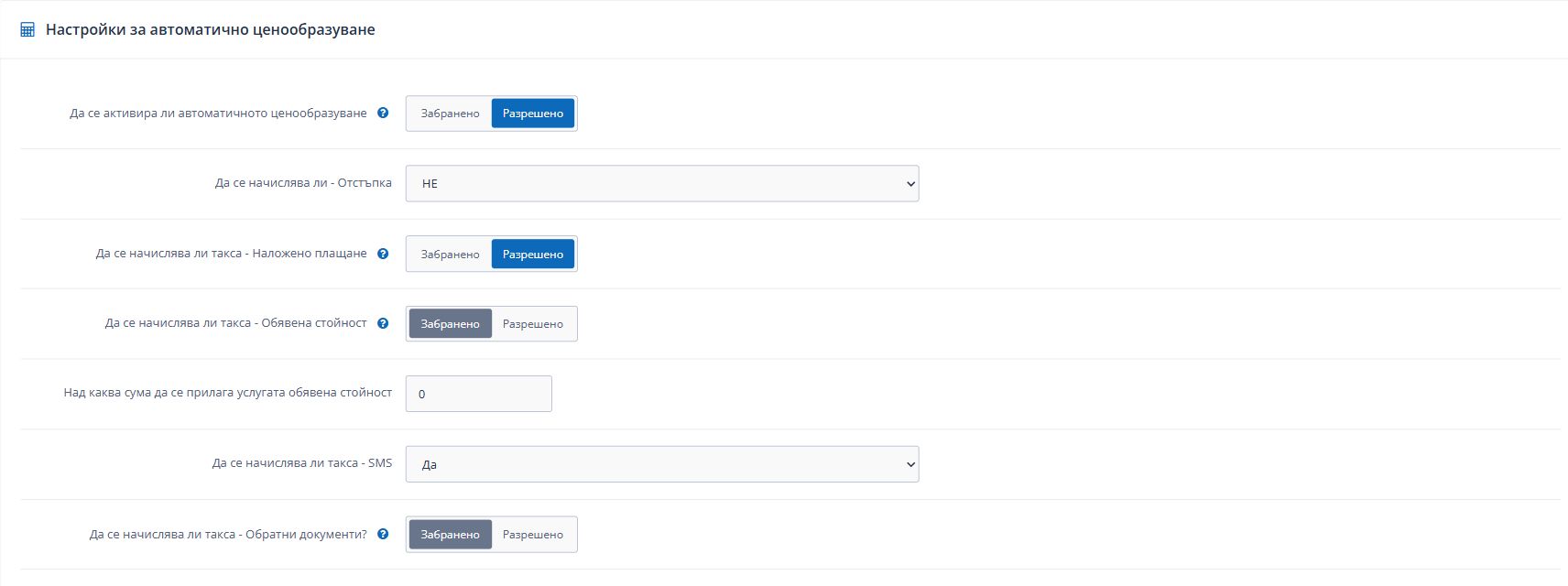
The screenshots show the Bulgarian administration of oc.tkdev.eu with TK - Econt 2.6. They identify the fields; the selected values are demonstration settings, not a recommended configuration for every store.
Automatic pricing and services
In Pricing → Automatic pricing settings, check whether automatic calculation is enabled. Then compare:
- Cash on delivery: is the service included for the selected payment method?
- Declared value: is it enabled, what amount is sent, and is there a threshold?
- SMS: is it always enabled, disabled or selected by the customer?
- Return documents: compare the corresponding service in Econt's portal. Similar field names alone are not enough.
- Discount: is a discount applied, removed or left without an additional adjustment?
- Sending from an office or address: does the origin match the label?
Rules that change the returned price
Enabling API calculation does not guarantee that the displayed amount stays unchanged. Also review:
- Fixed prices: TK Econt can use them when automatic calculation is disabled or no price is returned. A visible price alone does not prove that the API quote succeeded.
- Weight-based rules: an applicable rule can replace the API price. Check the range, country and delivery type.
- Percentage pricing: which part of the charge is assigned to the customer, and at what order value?
- Free shipping: value thresholds, weight limits and separate conditions for each method and country.
- Selected totals: which amounts count towards the threshold - subtotal, tax, coupon, voucher or other totals. A threshold before discounts can differ from one after discounts.
- Discount for payment without COD: switching the payment method may change shipping.
- Other modules: check whether a promotion, special shipping or order totals module changes the amount after the courier module.
3. What should match in delivery.econt.com?
Sign in to delivery.econt.com, choose the correct store and open its settings. If you manage several stores, compare the identifier with the delivery.econt.com store code in TK Econt. Editing a different store will not affect this integration.
- Sender and dispatch: compare the account, company and sending office or address. An office-origin quote and a label with address pickup describe different services. Econt dispatch settings.
- Additional services: compare declared value, notifications and return receipt, along with inspection, testing and Saturday delivery choices. Not every option necessarily has a separate fee, but the requests should match. Additional service settings.
- Payment: compare the transport payer, free shipping, fixed customer amount or percentage. Check the order of the rules: a higher-priority applicable rule can change the result. Payment rules and priority.
- Cash on delivery: compare the payout method and agreement with the module's selected profile. COD settings.
- Currency: compare the store currency in Econt with the currency used by the integration. General store settings.
Do not assume that changing one OpenCart switch updates every setting in delivery.econt.com. Check both locations and save each edited section that has a save button. The individual order's submitted data also matters, so inspect the resulting label as well.
4. Shipment details affect the price too
Weight, quantities and packaging
Check Catalog → Products → Edit → Data, including the weight unit and weight adjustments from product options. Compare the total for all quantities with the actual packed shipment. TK Checkout has fallback weight settings for products without a weight; these should reflect the goods rather than conceal missing data.
Also compare parcel count, dimensions and shipment type. Do not assume every module version sends product dimensions as the dimensions of the finished package. Where volumetric weight applies, a large light box can be charged differently from its actual kilograms. Check the particular service's rules; for example, Econt's cargo tariff covers actual and volumetric weight.
Route, service and calculation time
Compare the same receiving office, locker or full address, country and postal code. Check the service, delivery timing, selected day or time and applicable surcharges. An initial price before the address is complete may change after the final selection.
Check whether products, quantities, discounts or addresses changed between the order and label. Compare under the same tariff conditions and check for subsequent courier corrections to weight, dimensions or service. Econt calculates the quote using the supplied shipment parameters. How integrated price calculation works.
Account and contract discounts
Make sure the quote and label use the same sender profile and applicable contract. A public calculator without your contract may not be comparable. Do not apply a discount again if it is already included in the response.
VAT, currency and rounding
Compare final amounts in the same currency with the same VAT treatment. Review the courier's tax class, store tax settings and order total lines. Do not add VAT again to a VAT-inclusive amount or change tax settings just to make two figures match.
When currencies differ, check the conversion rate and whether you are comparing a saved order with a current quote. Small differences can result from rounding individual items, discounts or currency conversion. Econt's rounding and item-combining options address particular problems with submitted item totals and the packing list; they are not a general fix for different courier tariffs.
5. COD: avoid collecting shipping twice
In Pricing → Cash on delivery and totals, review the options for adding transport as an item in the packing list and what the shipping amount includes. They affect the amounts sent to Econt. Do not enable them merely as a precaution.

Illustrative amounts: goods cost €100 and the customer owes €5 shipping, making €105 in total. If COD already includes €105 and the label separately charges the recipient another €5, the customer would pay €110. Check COD and transport allocation together. The appropriate fields depend on how the store collects shipping.
Also compare COD after coupons and discounts, the selected agreement and the collection or payout fee. For a prepaid order, check that COD has not remained enabled. Declared value is a separate setting with a different purpose.
6. Apply the same checks to other couriers
- Speedy: compare the service, sender account, declared value, fragile option, COD, postal money transfer fees and handling surcharge. Review fixed prices, weight-based rules and free shipping.
- Pigeon: compare address/office/locker delivery, weight, COD totals, whether shipping is included, automatic pricing and free shipping thresholds.
- Other integrations: review the same groups of data using the available fields. Do not copy an Econt setting to another courier based solely on a similar label.
Not every option or service carries an additional fee with every courier. Compare the actual response and label breakdown rather than assuming a universal charge.
7. Locate the stage where the difference appears
- Record the order number, final checkout shipping amount and payment method.
- Compare the details above with the existing label or the calculation before issue.
- Temporarily enable TK Checkout debug logging and repeat the quote with the same cart and address. Follow the courier debug guide.
- Compare three stages: API request and returned price → price after store rules → label amount and payer. Identify where the difference starts.
- Change only the confirmed mismatch, save the relevant settings and repeat the test.
- Check address, office and locker delivery separately, COD and prepaid orders, orders below and above free shipping thresholds, and heavier or multi-item shipments.
- Disable debug logging afterwards. If identical data and rules still produce a difference, send the module versions, both amounts, delivery method and relevant redacted log excerpt through Help.
Changing settings does not mean an old order or an issued label will automatically get a new price. Do not create duplicate live labels just to compare amounts. Use the existing shipment, a calculation or a supported test environment.
Example: different declared value settings
The checkout quote excludes declared value, but delivery.econt.com has it enabled for the order. The label therefore includes a service absent from the initial calculation.
Decide whether you need the service and align its activation, threshold and amount in both locations. Do not remove a service you need solely to lower the figure. Then repeat the calculation with the same details. This is an illustrative scenario, not a real customer's case.
